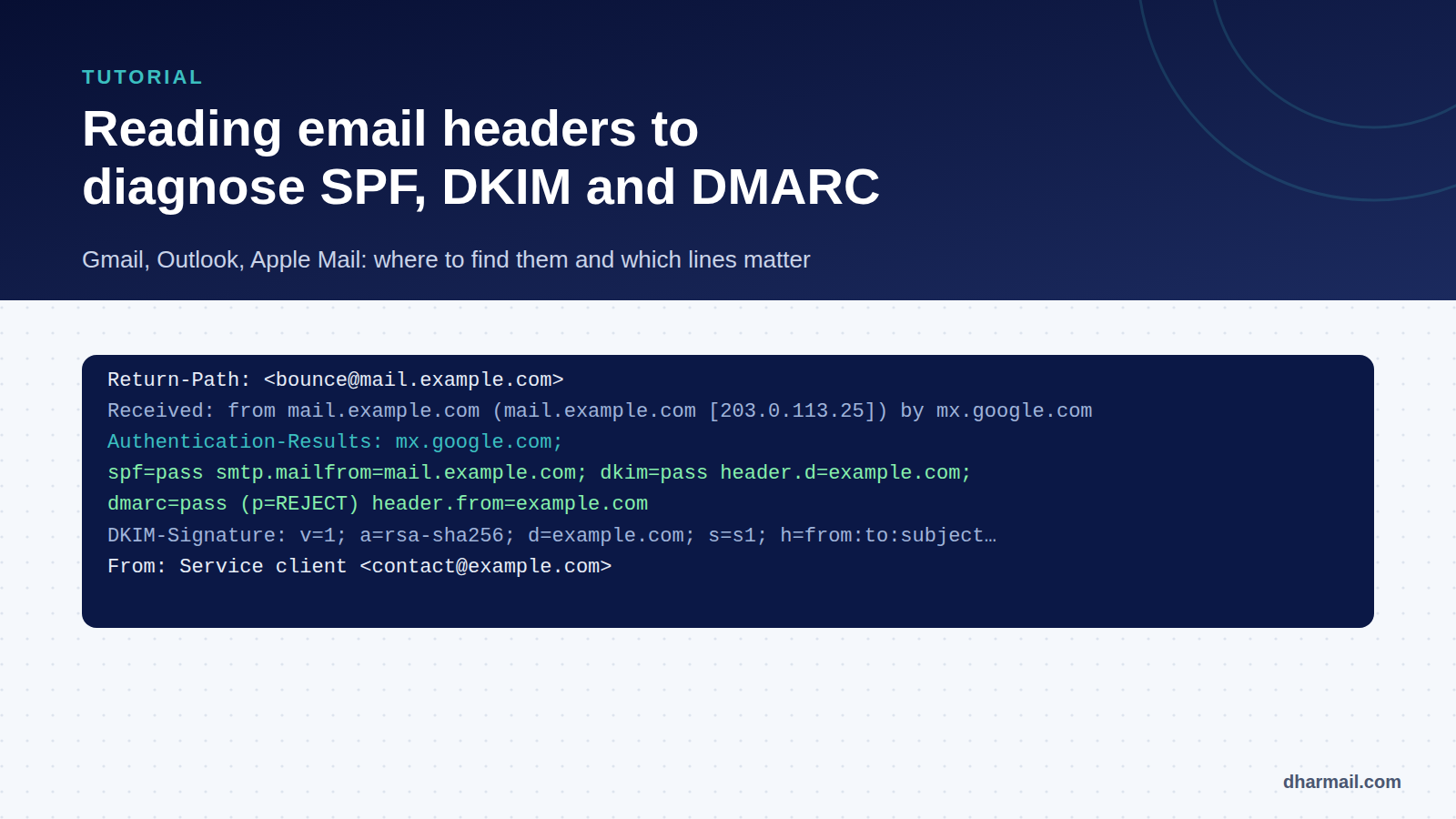
An email lands in spam, a customer says they never received it, a DMARC report flags a failure: in all these cases, the answer is written in the message headers. This block of technical text, hidden by default, contains the receiving server’s verdict, the path the email took and the signatures it carries.
This tutorial shows where to find headers in the main mailboxes, which lines to read and in what order, and how to interpret SPF, DKIM and DMARC results. It is the first reflex in any deliverability diagnosis.
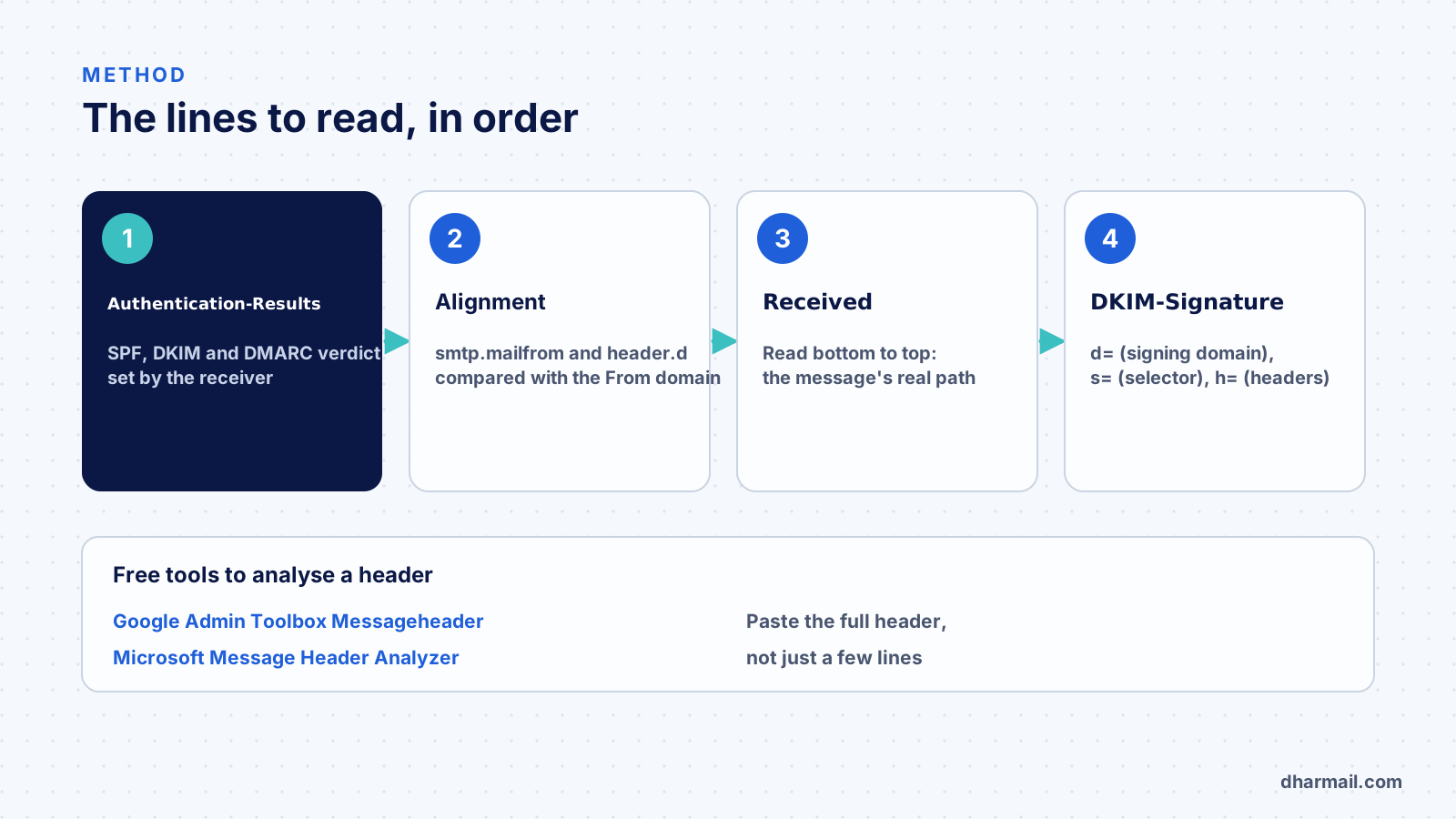
Key takeaway: always start with the
Authentication-Resultsheader added by the receiving server, then compare the domains it lists with theFromdomain. That is where alignment problems show up.
Where to find an email’s headers
Headers must be read at the recipient’s end: the receiving server is what adds the verification results. A message viewed in your own “Sent” folder does not contain them.
| Mailbox | Path |
|---|---|
| Gmail (web) | Open the message, ⋮ menu, then Show original |
| Outlook on the web, Outlook.com | Message … menu, View, then View message details |
| Classic Outlook (Windows) | Open the message, File, Properties, Internet headers box |
| Apple Mail | View menu, Message, then All Headers (or Raw Source) |
To get a third party’s view, ask for the message as an attachment (.eml format) rather than a regular forward, which replaces the original headers.
Step 1: read Authentication-Results
This is the most important line. The receiving server summarises its checks there:
Authentication-Results: mx.google.com;
   dkim=pass header.i=@example.com header.s=s1 header.b=Abc123;
   spf=pass (google.com: domain of bounce@mail.example.com designates 203.0.113.25 as permitted sender) smtp.mailfrom=bounce@mail.example.com;
dmarc=pass (p=REJECT sp=REJECT dis=NONE) header.from=example.comspf=: the SPF result, for the envelope domain shown insmtp.mailfrom.dkim=: the DKIM result, for the signing domain shown inheader.dorheader.i.dmarc=: the DMARC verdict for the From domain (header.from), with the published policy.
Possible values are pass, fail, softfail (SPF), neutral, none, temperror and permerror. An SPF permerror signals an invalid record, as in our SPF permerror case study.
Watch out for multiple headers. A message can carry several Authentication-Results headers, added by each server along the way. Trust the one from the final receiving server, at the top of the block. A header added further down, by a server you do not know, can be misleading.
Step 2: check alignment
DMARC is not satisfied by a bare spf=pass or dkim=pass. At least one of them must pass for the same domain as the From field.
| What you read | What it means |
|---|---|
smtp.mailfrom=…@mail.example.com, header.from=example.com |
SPF aligned (same organisational domain, relaxed alignment) |
header.d=esp-platform.net, header.from=example.com |
DKIM not aligned: the platform signs with its own domain |
dkim=fail (body hash did not verify) |
Message modified after signing |
An spf=pass for your sending platform’s domain and a dkim=pass for that same domain often produce dmarc=fail: neither is aligned. It is the most common mistake with marketing tools. Our DKIM “body hash did not verify” case study shows another classic trap.
Step 3: read the Received chain from bottom to top
Each server that relays the message adds a Received line at the top of the headers. To rebuild the path, read from bottom to top:
Received: from mail.example.com (mail.example.com [203.0.113.25])
        by mx.google.com with ESMTPS id … ; Thu, 14 Nov 2026 09:12:04 +0100
Received: from app-server.internal (10.0.0.12)
        by mail.example.com with ESMTP; Thu, 14 Nov 2026 09:12:02 +0100
The lowest line is the departure, the highest the arrival. You can read:
- the real IP of the server that handed the message to the receiver, and the name it announced;
- timestamps, useful to spot an abnormal delay between two steps;
- any unexpected relays: security gateway, old server, forwarding service.
The name in brackets after the IP is usually the reverse DNS seen by the receiver. A generic or missing name can explain a rejection, like Gmail error 550-5.7.25.
Step 4: examine the DKIM signature
DKIM-Signature: v=1; a=rsa-sha256; c=relaxed/relaxed; d=example.com; s=s1;
h=from:to:subject:date:message-id; bh=…; b=…d=: the signing domain, to compare with the From domain;s=: the selector, showing where to find the public key (s1._domainkey.example.com);h=: the list of headers covered by the signature.
A message can carry several signatures: your platform’s, Microsoft 365’s, a mailing list’s. One valid aligned signature is enough for DMARC to pass.
Microsoft-specific headers
At Microsoft 365 and Outlook.com, Authentication-Results also includes compauth (composite authentication), which summarises Microsoft’s anti-spoofing verdict, with a reason code. Microsoft’s documentation explains, for example, that a message failing DMARC under p=reject carries action=oreject.
The X-Forefront-Antispam-Report header contains the spam confidence level (SCL) and the filter verdict. A high SCL means Junk filing; SCL:-1 marks a message that skipped filtering, often because of a rule or an allow list.
Tools that do the reading for you
Two free tools analyse a full header pasted into a form:
- Google Admin Toolbox Messageheader, which lays out the path, delays and authentication results;
- Microsoft Message Header Analyzer, which also interprets Microsoft-specific headers.
They make reading easier, but do not replace understanding: they do not know which sending tools you use or what your expected configuration is.
FAQ
Where do I find email headers in Gmail?
Open the message, click the ⋮ menu at the top right, then Show original. Gmail shows an SPF, DKIM and DMARC summary, then the full headers.
Which line should I read first?
Authentication-Results, added by the final receiving server. It gives the SPF, DKIM and DMARC verdict.
Why does DMARC fail when SPF and DKIM pass?
Because neither is aligned: they pass for the sending platform’s domain, not the From domain.
How do I read the Received chain?
From bottom to top: the lowest line is where the message left, the highest is where it arrived at the recipient.
Can I read the headers of a forwarded email?
No, a regular forward replaces the headers. Ask for the message as an .eml attachment.
Conclusion
Reading headers turns “my emails go to spam” into a precise diagnosis: which mechanism fails, for which domain, at which step of the path. Make it a habit to ask for an .eml file with every report. If the analysis reveals alignment problems across several tools, Dharmail’s SPF, DKIM and DMARC audit and configuration service (page in French) fixes them flow by flow.