
A Microsoft 365 100 GB mailbox sounds straightforward until you inspect a real tenant. A user may have the right license but a lower custom quota. An archive may be much smaller than the primary mailbox. A shared mailbox may still stop at 50 GB. And a migration that depends on extra capacity can fail if the additional service plan has not been enabled for the target user.
The Microsoft Exchange Team’s explanation gives administrators the licensing mechanism. The useful follow-up is to connect that mechanism to the limits users actually encounter, the policies that keep data, and the work required when mailboxes grow. This article focuses on those operational consequences.
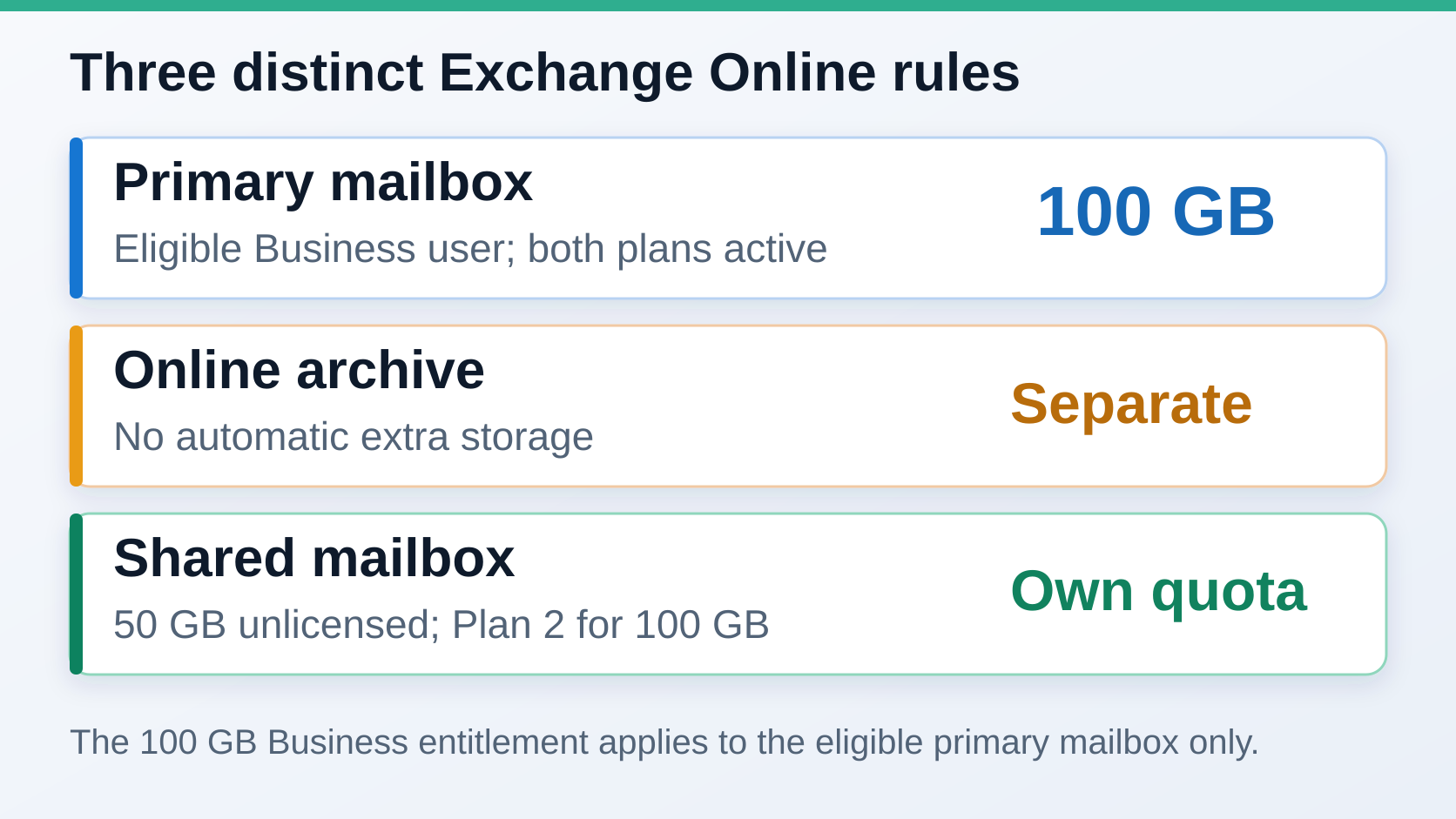
Key point: eligible Business Basic, Standard and Premium users can receive a 100 GB primary mailbox entitlement. The change does not upgrade standalone Exchange Online Plan 1, increase archive rights, or raise the limit of an unlicensed shared mailbox. An administrator’s lower custom quota is preserved.
1. What Microsoft actually changed
Microsoft 365 Business suites previously provided a 50 GB primary mailbox through the Exchange service plan BPOS_S_STANDARD. An additional plan, EXCHANGE_STORAGE_50GB, supplies 50 GB more, bringing the supported primary mailbox maximum to 100 GB. Both plans must be enabled for the eligible user. Microsoft says the additional plan is provisioned automatically after rollout for the relevant users, but its presence is still worth checking in tenants with exceptions.
The arithmetic applies inside a Business suite entitlement; it is not a rule for stacking unrelated products. A person assigned Business Premium and another license that already grants a 100 GB Exchange mailbox does not receive 150 or 200 GB. Exchange uses the highest applicable entitlement from a single product. If the extra service plan is absent or explicitly disabled, a mailbox that uses plan defaults remains subject to the underlying Business plan until the entitlement is available again.
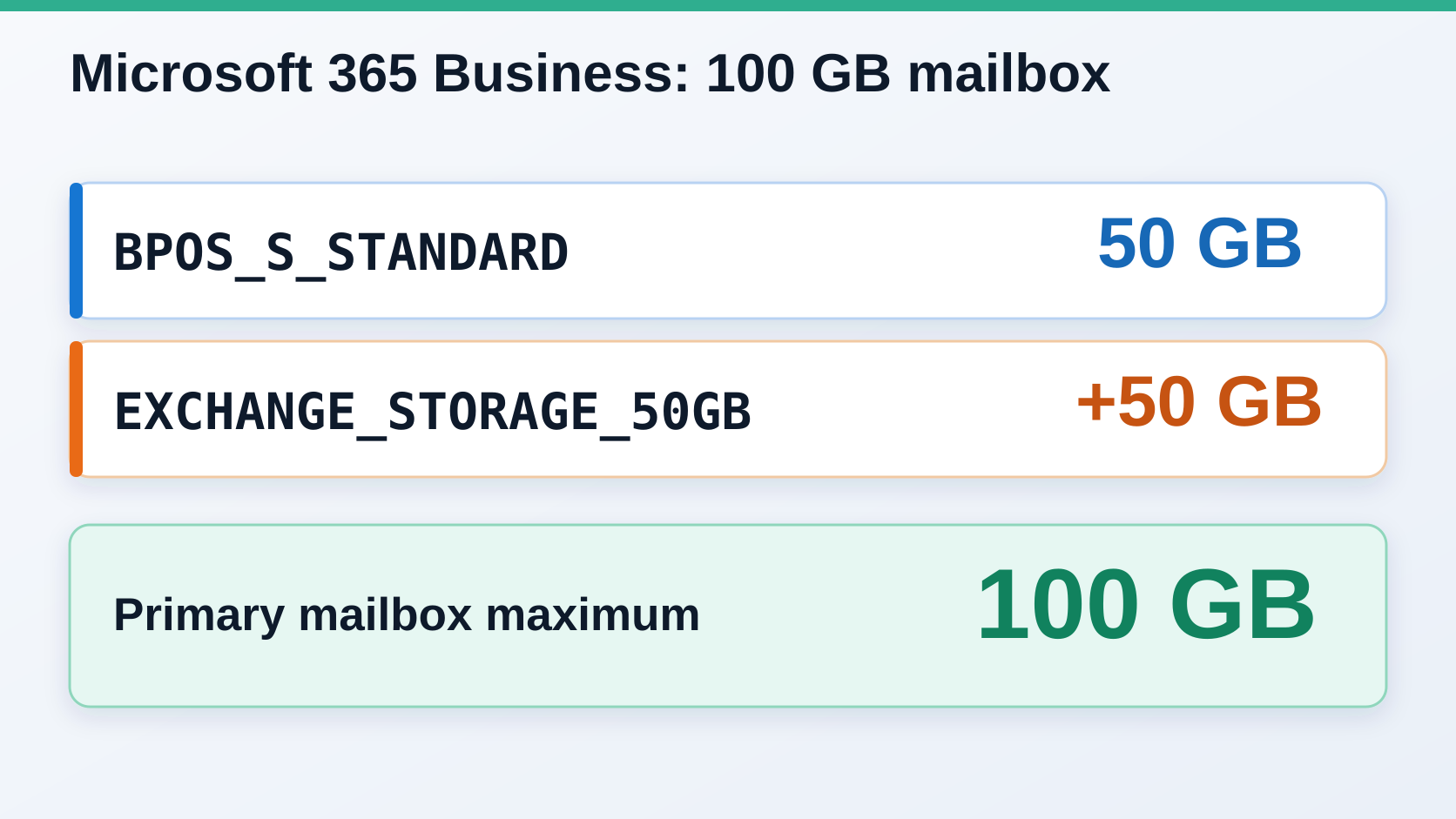
The word entitlement matters. Administrators may set lower mailbox limits, and Microsoft states that the new plan does not overwrite such custom values. A 20 GB mailbox deliberately capped for a particular role remains 20 GB. Removing the add-on later does not silently replace a subsequently customized setting either. A license inventory alone cannot tell you the actual Exchange Online mailbox quota for every user.
2. Which licenses are affected?
| License assigned to a user mailbox | Primary mailbox | Effect on online archive |
|---|---|---|
| Microsoft 365 Business Basic | Up to 100 GB with both plans enabled | No new archive entitlement |
| Microsoft 365 Business Standard | Up to 100 GB with both plans enabled | No new archive entitlement |
| Microsoft 365 Business Premium | Up to 100 GB with both plans enabled | Existing Premium archive rights continue |
| Standalone Exchange Online Plan 1 | 50 GB | No primary mailbox increase |
| Standalone Exchange Online Plan 2 | 100 GB | Existing Plan 2 archive rights continue |
The three Business suites share the new ceiling for user primary mailboxes. They do not become identical products. Microsoft’s current limits table lists a 50 GB archive mailbox for Business Basic and Standard, while Business Premium supports an archive that can grow to 1.5 TB with auto-expanding archiving under Microsoft’s documented conditions. That larger number is a separate archive allowance, not a larger inbox and not unlimited storage immediately available to each user.
The change also does not turn Business Basic or Standard into Exchange Online Plan 2. Plan 2’s licensing capabilities are broader than primary mailbox size, including archive and hold features. Conversely, buying standalone Plan 1 does not inherit the Business-suite add-on. Where multiple Exchange licenses coexist, check which service plan grants the effective maximum and which plan grants the compliance feature you intend to use; the two questions may have different answers.
3. A 100 GB ceiling is still a ceiling
Microsoft’s Exchange Online limits list typical Business-suite thresholds of 98 GB for a warning, 99 GB for prohibit send, and 100 GB for prohibit send and receive. These are the published values for the standard entitlement, not a reason to run every mailbox close to full. An administrator-defined limit or a provisioning exception can produce different values on an individual mailbox.
At the prohibit-send threshold, the user cannot send until space is freed. At the prohibit-send-and-receive threshold, Exchange rejects incoming mail and returns a non-delivery report to the sender. Increasing a 50 GB mailbox to 100 GB may prevent an imminent storage incident; it does not eliminate growth. A mailbox receiving 2 GB of new material a month eventually reaches either ceiling.
Other Exchange limits have their own rules: message size, folder item counts, Recoverable Items storage and archive capacity do not all double with this add-on. Nor does mailbox storage replace SharePoint or OneDrive as the home for shared documents. Repeated attachments, automated copies and long-lived project threads are signs to review workflow and records management, even when the mailbox currently has plenty of space.
4. Primary mailbox, archive, retention and backup
A primary mailbox holds a user’s active Exchange mail and is what the new entitlement addresses. An online archive is a separate mailbox associated with a licensed user. It can make older mail available while a move-to-archive policy reduces pressure on the primary mailbox. The EXCHANGE_STORAGE_50GB plan does not create an archive, enable auto-expanding archiving or change archive licensing.
Retention sets rules for preserving or deleting content for a defined period. Microsoft Purview retention can keep a copy of a deleted message in Recoverable Items while the policy applies. Exchange MRM policies that move old mail into an archive serve a different purpose. An archive move may improve day-to-day capacity; it does not, by itself, establish the legal or business retention period. Administrators should know which policy governs each mailbox and what happens when an employee leaves.
Backup addresses restoration after an error or incident, according to a defined recovery objective. Microsoft notes that Exchange Online’s built-in retention features are not a traditional point-in-time mailbox backup. A team that needs to restore data to a specific earlier state should select and test a backup approach separately. Merely allocating more mailbox or archive storage does not create a recoverable copy.
Deliverability concerns whether an outgoing message is accepted and how a recipient’s system classifies it. That depends on factors such as authentication, sender reputation, complaints and recipient rules. It is unrelated to the sender’s spare mailbox capacity. These five terms—capacity, archiving, retention, backup and deliverability—should have separate owners and checks in an operational plan.
5. Existing tenants and migration cases
In a simple tenant, eligible users may receive the additional service plan and default quotas with no manual change. Older or mixed tenants deserve closer inspection. Some accounts combine Business and Enterprise licenses; some have lower administrator-set quotas; some have Exchange service plans selectively disabled. Capture the product license, enabled service plans, mailbox type, actual quotas and current size together. The product name in the admin center is not sufficient evidence that a particular mailbox can accept another 50 GB.
This matters during migrations. Before scheduling a source mailbox larger than 50 GB for a Business target, verify that the target has the extra plan and the required effective limits. Inventory the source archive, Recoverable Items and any hold or retention rules separately. A large on-premises or third-party archive cannot simply be counted as free primary mailbox capacity in Exchange Online. Plan the migration batch, target licensing and validation against the actual data to move.
A mailbox already at its old 50 GB ceiling might start working again after the entitlement is applied, but that relief does not explain why it filled up. Check growth, duplicated attachments, large folders and policy-driven retained content. Also record any custom quota and why it exists; Microsoft’s rollout preserves it. If an organization later removes a Business license or changes the user’s plan, compare occupied space with the new entitlement before making that change.
Hybrid estates require one more distinction: identify whether each mailbox resides on-premises or in Exchange Online and where its authoritative attributes are managed. A cloud licensing announcement does not increase storage on a local Exchange server. For a broader example of migration inventory, see Dharmail’s guide to moving data from Google Workspace to Microsoft 365.
6. Shared mailboxes remain a separate case
An unlicensed shared mailbox remains limited to 50 GB. The Business license of someone who accesses it is not transferred to the shared mailbox. Microsoft’s limits documentation specifies an Exchange Online Plan 2 license on the shared mailbox to raise its primary mailbox limit to 100 GB. Users accessing the mailbox must themselves have an appropriate Exchange Online license.
A support, billing or recruiting address can accumulate mail faster than an individual account, particularly when attachments and replies are retained for years. If it approaches 50 GB, check the mailbox type, size, license assigned to that mailbox, archive status and any hold requirements. Archive and litigation hold rights on shared mailboxes have their own licensing conditions. The fact that the team members use Business Premium is not proof that the shared mailbox has a 100 GB primary quota or an expandable archive.
Microsoft also disallows using a shared mailbox as a catch-all archive fed by systematic copies of other users’ mail. A shared address for shared work is a valid use case. Centralizing everyone else’s mail there to sidestep per-user archive and retention licensing is not. Define whether the business need is collaborative processing, each person’s archive, or formal preservation; then license and configure that need directly.
7. What administrators should check
Start with representative accounts: one each on Basic, Standard and Premium; a mailbox with a custom quota; and a shared mailbox. In the Microsoft 365 admin center, confirm the Exchange base plan and EXCHANGE_STORAGE_50GB are enabled for eligible users. In Exchange Online, read the IssueWarning, ProhibitSend and ProhibitSendReceive values, then compare them with current mailbox size. The Exchange admin center and PowerShell can provide those figures; Microsoft recommends Get-EXOMailboxStatistics for Exchange Online mailbox statistics.
Avoid setting every mailbox to 100 GB just because one account shows a lower value. The lower setting may be intentional; a service plan may be disabled; or rollout may not yet have finished for that user. Record the reason before changing anything. For mailboxes nearing a threshold, review the growth trend over several months. A snapshot only shows today’s occupancy, not whether the new headroom lasts a quarter or several years.
Next, review online archive activation and license rights separately. Compare move-to-archive rules with Purview retention requirements and make sure the people responsible for compliance understand both. Review the organization’s backup and restore procedure if it has recovery requirements. This is a useful opportunity for a mailbox governance audit, not merely a quota adjustment.
8. What does not change for deliverability
A larger mailbox may prevent an incoming message from bouncing because the recipient mailbox is full. It does not improve the reputation of that recipient as a sender, alter SPF, DKIM or DMARC, raise outbound sending limits, reduce complaints or persuade another provider’s spam filters. Calling both situations “email delivery” can lead to the wrong fix.
Separate a mailbox-full non-delivery report from a policy-related SMTP rejection and from a message placed in spam. Dharmail’s guides to SPF, DKIM and DMARC, emails landing in spam and SMTP error codes cover those diagnostics. Capacity is a storage and receiving concern; deliverability is a sending and recipient-classification concern.
9. Practical checklist
- List Business Basic, Standard and Premium users and verify both
BPOS_S_STANDARDandEXCHANGE_STORAGE_50GBare enabled. - Record current mailbox size, the three effective quota thresholds and any administrator-defined exceptions.
- Identify concurrent licenses; Exchange does not add primary mailbox quotas across products.
- Inspect online archives, their separate licenses, activation and move policies.
- Find shared mailboxes nearing 50 GB and verify their own licensing before planning for 100 GB.
- For migration targets, compare source size, archive data, Recoverable Items and target entitlement.
- Review Purview retention, MRM archive rules and actual recovery needs with business owners.
- Investigate authentication and deliverability through a separate diagnostic process.
Conclusion
The new 100 GB entitlement gives eligible Microsoft 365 Business users useful space in their primary Exchange Online mailbox. Its value depends on the effective quota assigned to each mailbox and on the way the organization manages growing mail. Archives, shared mailboxes, retention and backup retain their separate limits and licenses. A sensible response is to verify entitlements, monitor growth, document exceptions and test recovery. Dharmail’s messaging audit services can help turn that inventory into a practical governance plan.
Sources and references
- Microsoft Exchange Team — Understanding the new 100 GB mailbox entitlement for Microsoft 365 Business suites
- Microsoft Learn — Exchange Online limits, including mailboxes, archives and shared mailboxes
- Microsoft Learn — Exchange Online Archiving service description
- Microsoft Learn — Retention policies and labels
- Microsoft Learn — Back up email in Exchange Online